Grab the RSS feed

Basic PLC Programs

Input signal from Input device will entrance to PLC by Input module. After that PLC will process Input signal with Processor memory. Then PLC will transfer Output signal to Output device by Output module.

Basic componant of PLC Programs .

1. CPU ( Central Processor Module )
Process software application in ROM/RAM. Some application depend on Brand or Type.

2. Memory Unit
- ROM : Storage functions of the PLC Programs, Have battery to back up.
- RAM : Can be divided into EPROM, which will require special equipment to write and delete


PLC
3. I/O Unit
- Digital input module : Receive digital signal from Input device. ( 24VDC/VAC, 110V, 220V )
- Digital output module : Send digital signal to Output device. ( 24VDC/VAC, 110V, 220V )
- Analog input modle : Receive analog signal from Input device. ( 0-10VDC, 4-20Ma )
- Analog output module : Send analog signal to Output device. ( 0-10VDC, 4-20Ma )

4. Power supply
To supply electricity to PLC Programs device.

5. Base module
To connect all PLC Programs device.

Read more >>

How to back up Mitsubishi PLC

The most important of PLC Programs is PLC back up. This article will show you step by step to back up Misubishi PLC FX series.

1. Interface Mitsubishi PLC with PC by interface cable. ( RS232, USB, Etc )

PLC Programs
2. Open GX Developer Software.
- Select online -> Read from PLC.

PLC Programs
3. Select Main + PLC parameter -> Execute -> Yes
- To back up Main ladder and PLC parameter

PLC Programs
4. Waiting for read PLC Programs data -> OK

PLC Programs
5. Open Project -> Save as -> Create name for your PLC Programs back up -> Save.

PLC Programs
PLC ProgramsTag : PLC Programs; How to back up Mitsubishi PLC; Back up Mitsubishi PLC; How to Back up PLC; Back up PLC FX Series
Read more >>

Back up Allen Bradley PLC

Back up PLC Programs for Allen Bradley ( SLC 500 )

1. Connect PLC with your PC by RSLinx lite.
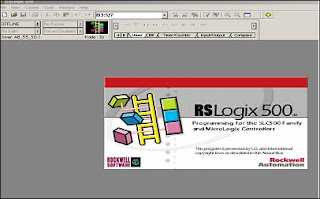
2. Open RSLogix500 PLC Programs and insert PLC Licence Disc.
Note : System will show "Fatal Error" if don't have Licence disc.
PLC Programs

3. Open PLC Programs file by click File and open.

PLC Programs
4. Select Comm at Toolbar and choose System Comm..

PLC Programs
5. Switch PLC key to Program mode.
- You need to select Program mode when Upload and Download PLC Programs.

6. Confirm Download by select Yes.

PLC Programs
Read more >>

Diagnosing Hardware and Troubleshooting Siemens S7 PLC

How to Locate Faults

1. Open the online window for the project with the menu command View >
Online.
2. Open all the stations so that the programmable modules configured in them
are visible.
3. Check to see which CPU is displaying a diagnostics symbol indicating an error
or fault. You can open the help page with an explanation of the diagnostics
symbols using the F1 key.
4. Select the station that you want to examine.
5. Select the menu command PLC > Diagnostics/Settings > Module
Information to display the module information for the CPU in this station.
6. Select the menu command PLC > Diagnostics/Settings > Diagnose
Hardware to display the "quick view" with the CPU and the failed modules in
this station. The display of the quick view is set as default (menu command
Option > Customize, "View" tab).
7. Select a faulty module in the quick view.
8. Click the "Module Information" button to obtain the information on this module.
9. Click the "Open Station Online" button in the quick view to display the
diagnostic view. The diagnostic view contains all the modules in the station in
their slot order.
10. Double-click a module in the diagnostic view in order to display its module
information. In this way, you can also obtain information for those modules that
are not faulty and therefore not displayed in the quick view.
You do not necessarily have to carry out all of the steps; you can stop as soon as
you have obtained the diagnostic information you require.
Read more >>

Uninstalling STEP 7

You can remove Step 7 by follow this instruction.

1. Open control panel and Double-click at ”Add/Remove Programs to start the Windows software installation dialog box.
2. Select STEP 7 entry on the displayed list of installed software. Click the
button to ”Add/Remove" the software.
3. If the ”Remove Shared File" dialog box appears, click the ”No" button if you are
uncertain.
Read more >>

Enter your email address:

Delivered by FeedBurner

Recommend PLC Book